Guide
Running a match
Everything a match operator needs, in the order the game happens. Written for whoever is holding the phone on the sideline — a coach, a manager, or a parent helping out.
First: get the badge
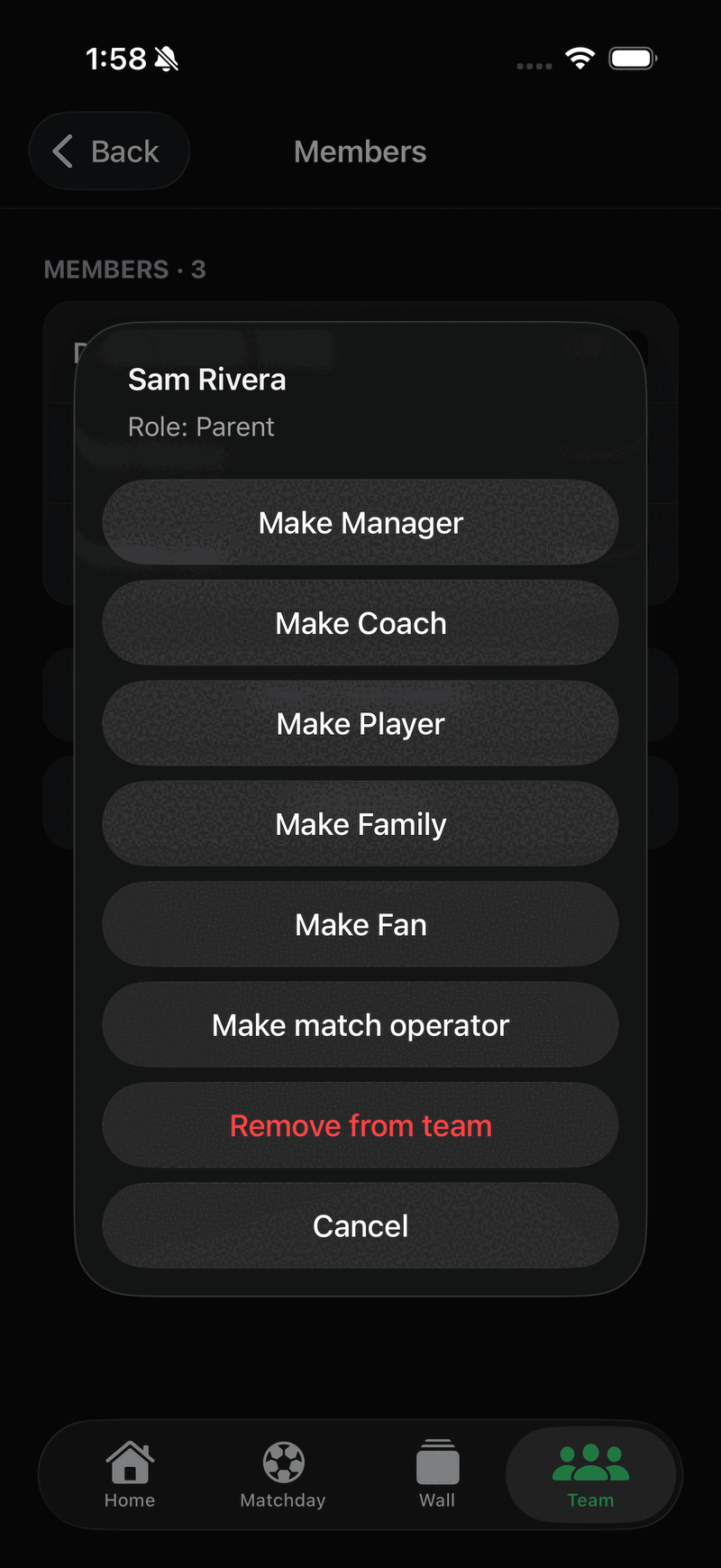
Tracking a match needs permission. Coaches and managers already have it. For anyone else, the team owner or a manager grants it: open the Team tab, tap Club Management, then Members, tap the person's name, and choose Make match operator. A Match Operator badge appears under their name.
The badge only grants live match tracking. It does not give any control over the roster, the schedule, or team settings. It is a toggle — tapping it again takes the badge away.
Sort this out before you get to the field, not at kick-off.
Match day, in order
-
1
Check the right team is selected
If you belong to more than one team, switch to the one playing today before you start. Everything you log goes to whichever team is active.
-
2
Open Matchday and tap Start
On the day of the game, the scheduled match shows a Start button. Before game day it shows a countdown instead — that is normal, not a fault. If the game was never added to the schedule, use Start unscheduled match.
-
3
Start the clock at the whistle
Starting the match and starting the clock are the same tap. Do it when the referee blows, not when you open the screen.
-
4
Log as the game goes
Goals as they happen, plus cards and substitutions if the team is on Matchday Premier. Everyone following the team sees the score change in real time.
-
5
End half at the break, End at full time
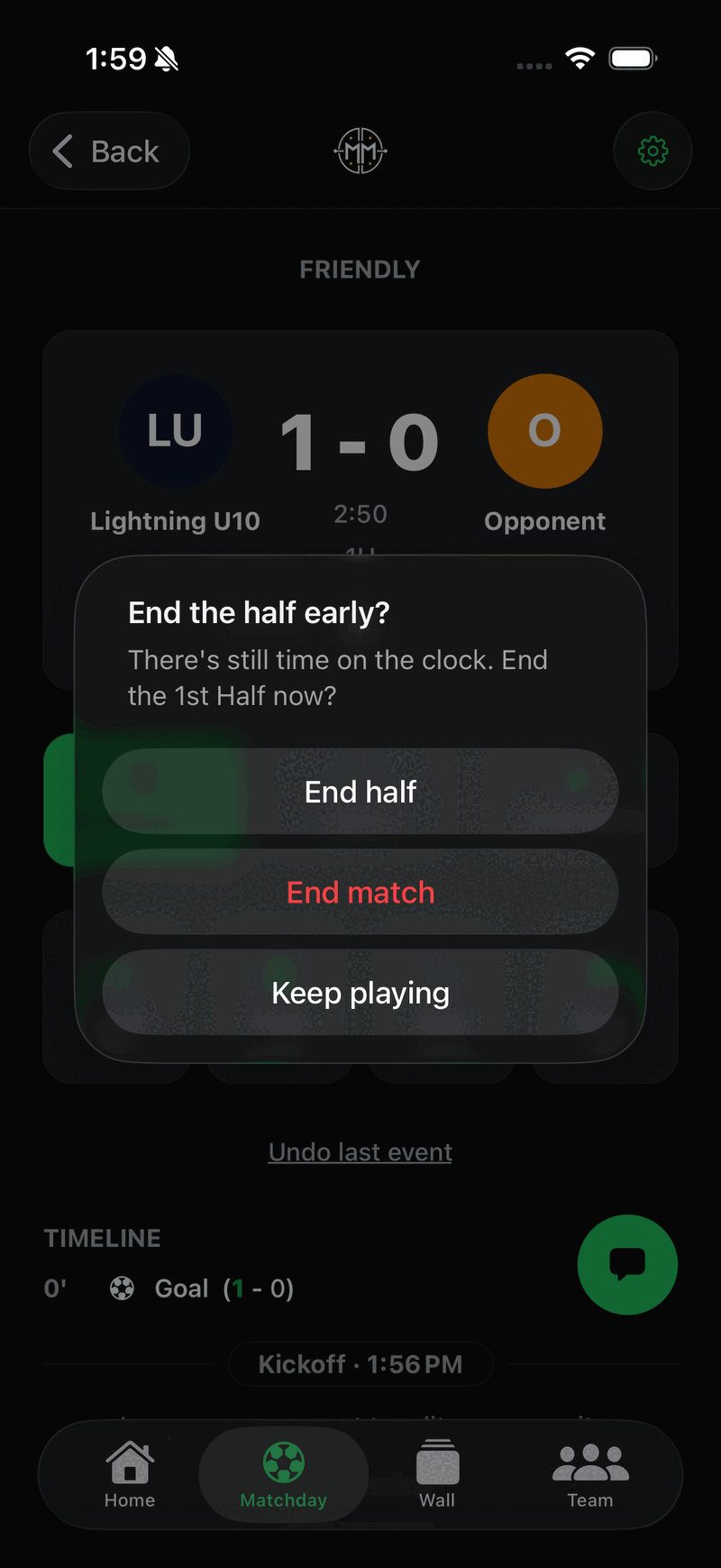
On the final period the button reads End rather than End half. If there is still time on the clock the app asks you to confirm, and offers End match in case the game was abandoned at the break.
The buttons on the tracker
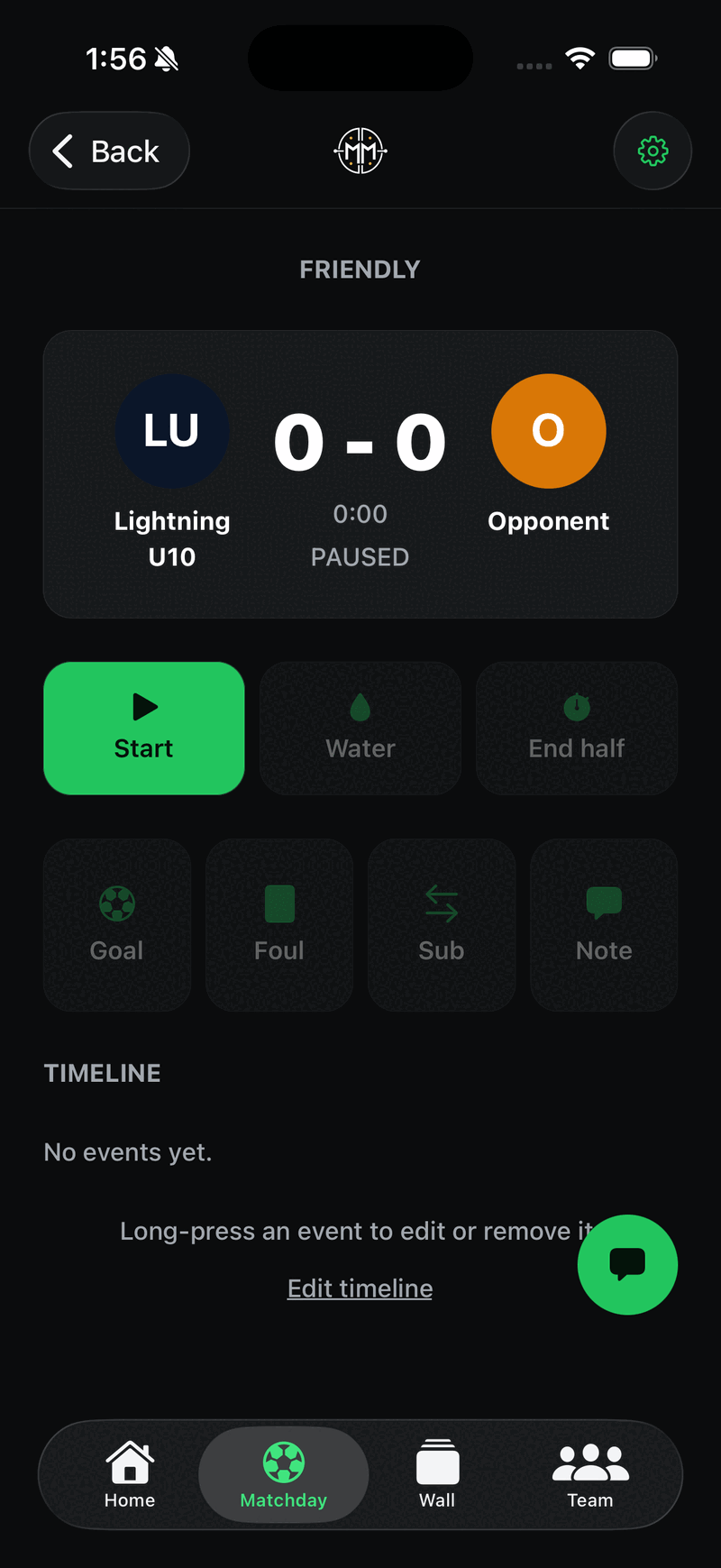
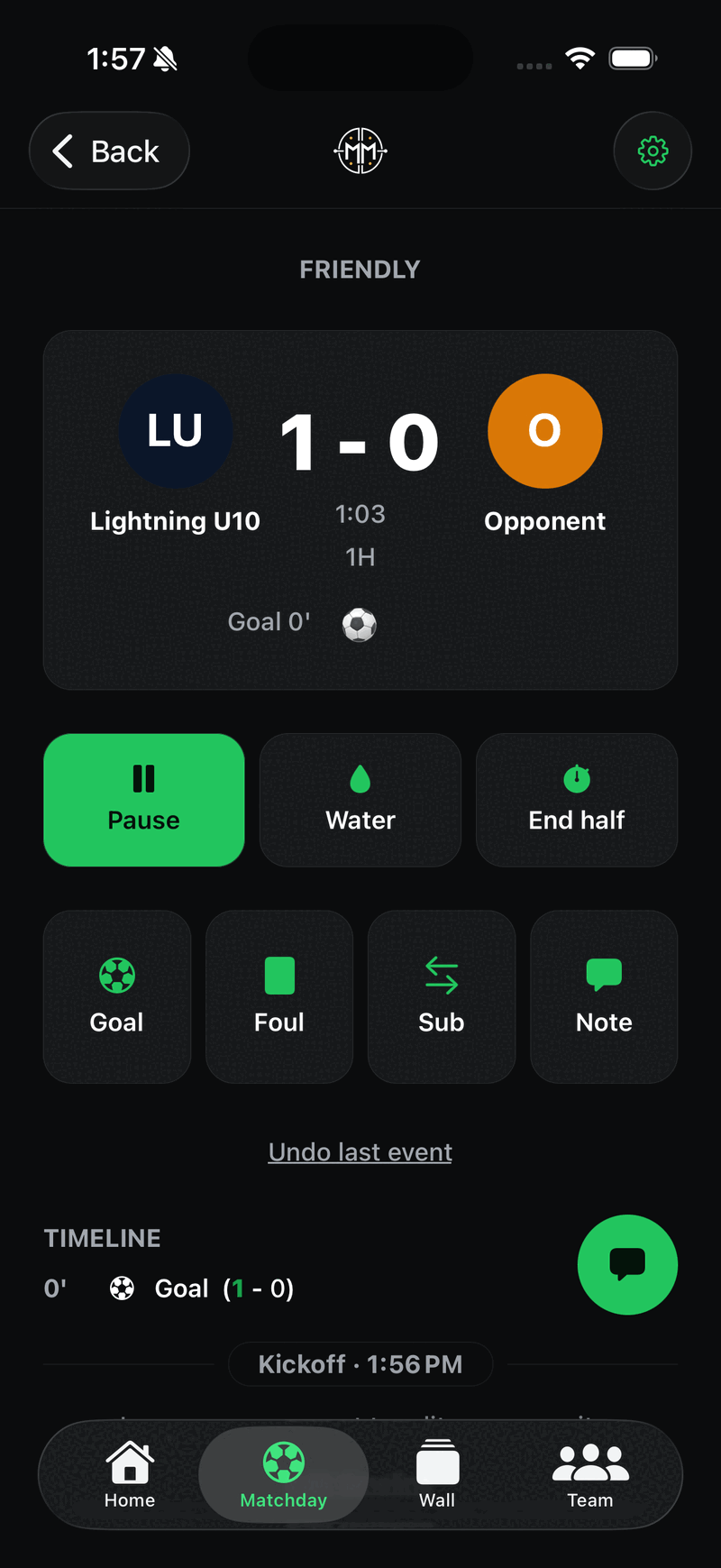
Start becomes Pause, then Resume. Goal takes either side and lets you pick the scorer. Note records anything worth remembering. End half closes the period, and reads End on the last one.
Foul (cards), Sub, and Water are Matchday Premier features. Everything stays locked until you start the clock, and Goal locks again during half-time — that is deliberate, so events attach to the right period.
If your team is on the free plan
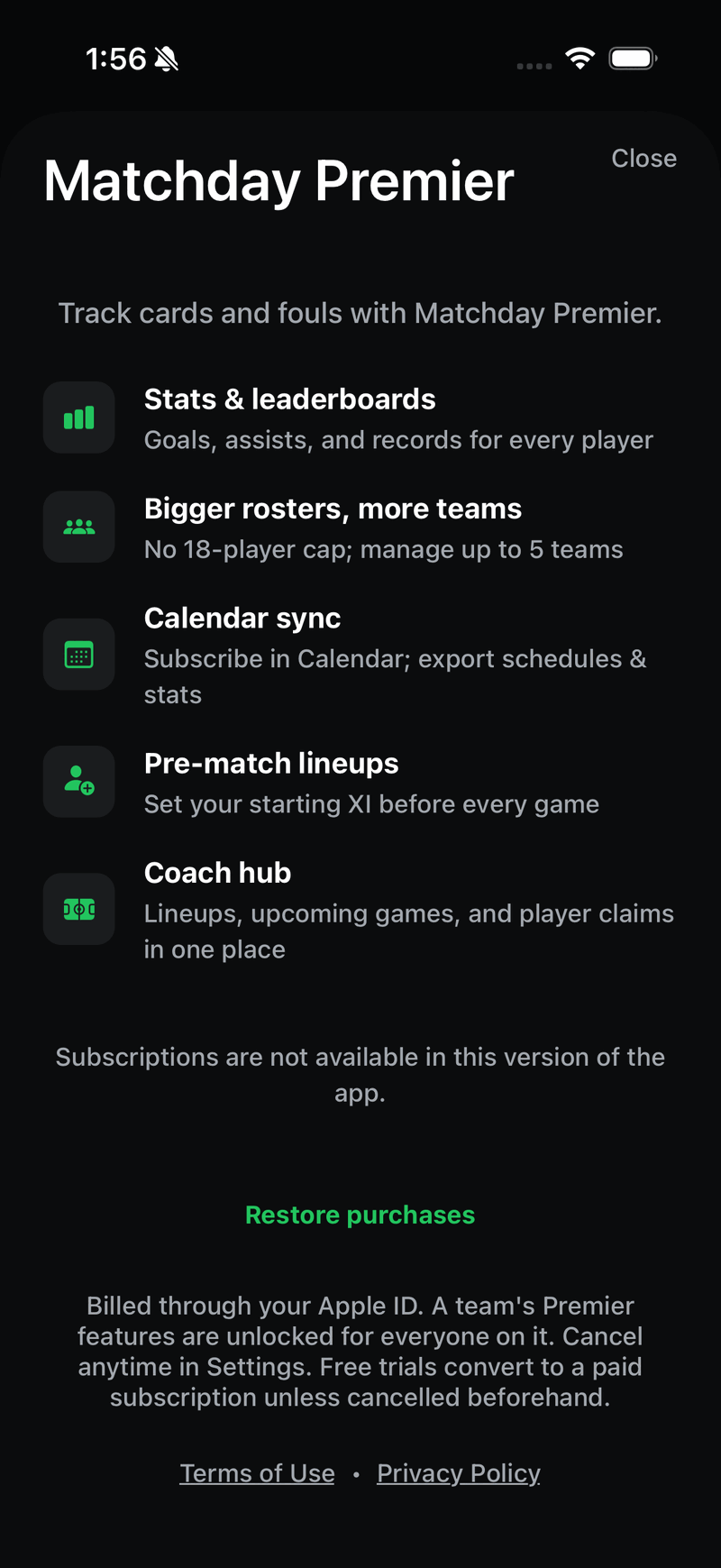
The Premier buttons look exactly like the ones that work — same brightness, no padlock. You find out only when the subscription screen covers the pitch mid-match, with nothing logged. Check which plan the team is on before match day rather than at 0–0 in the eighth minute.
When it goes sideways
You tapped the wrong thing. Use Undo last event, or long-press an entry in the timeline to edit or remove it. Never restart the match to fix a mistake — you will lose everything already logged.
The field has no signal. Keep going. Events are saved on your phone first and sync on their own once you are back on a network. The score on your screen is correct even when nobody else's is updating yet.
Someone else is also tracking. Agree beforehand that exactly one person runs the match. Two operators logging the same goal produces two goals.
You missed the kick-off. Start it anyway, then use the clock controls to get the time roughly right. An approximate clock with a complete timeline beats a perfect clock with nothing in it.
Cards, substitutions and playing time, water breaks, assists, and the lineup builder.